
How to Export Your Goodreads Library
A step-by-step walkthrough for downloading your reading history, on a computer or straight from your phone, and what carries over when you import it.
Everything you've logged on Goodreads, every book, shelf, rating, review and read date, can be downloaded as a single file in a couple of minutes. Whether you're switching to a new book tracking app or just want a backup, here's exactly how to do it, including on your phone, what the file does and doesn't contain, and fixes for the common hiccups.
Last reviewed
Step 1: Open Goodreads in a Web Browser (Not the App)
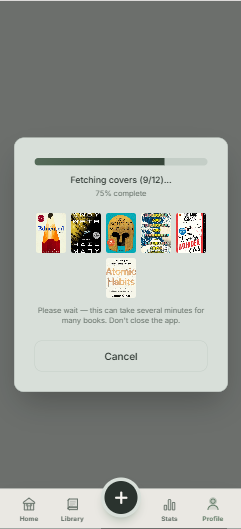
Moving to Parch? You can skip Steps 1 to 3: Parch walks you through them inside the app, as the Parch step below shows. For any other app, read on. The most important thing to know: the Goodreads app can't export your library. The export only exists on the Goodreads website, so open goodreads.com in a browser and sign in. A computer is easiest, but your phone works too.
On a phone, ask for the desktop version of the site first, because the export link isn't on the mobile pages. On iPhone in Safari, tap the page menu (aA) in the address bar and choose Request Desktop Website. On Android in Chrome, tap the three-dot menu and tick Desktop site.
If you've only ever used the app, you may need to reset your password to sign in on the web; use the same email address as your app account.
Step 2: Go to My Books → Import and Export
From the top navigation, click My Books to open your shelves. In the left-hand sidebar, under Tools near the bottom, click Import and Export.
If you can't find it, go straight to goodreads.com/review/import once you're signed in; it's the same page.
Step 3: Click Export Library and Download the File
At the top of the Import and Export page, click Export Library. Goodreads builds a CSV (spreadsheet) file of your whole library. Small libraries take seconds; thousands of books can take a few minutes.
When it's ready, a link appears on the same page, something like "Your export from 10/08/2026". Tap or click it to download goodreads_library_export.csv. If the link doesn't appear, refresh the page after a minute; the export keeps running in the background.
On a phone the file lands where your browser saves downloads: on iPhone, the Downloads folder in the Files app; on Android, Downloads. Make sure you use this Export Library file, not the archive from Goodreads' separate "Request My Data" option, which is a different format.
What's Inside the Export File
The CSV has a row for every book you've added, with columns for title, author, ISBN, your rating, the community average, publisher, binding, page count, publication year, your shelves (read, currently-reading, to-read and any custom shelves), date read, date added, how many times you've read it, and the text of your reviews and private notes.
Three things it doesn't include. Your comments, groups and friends list stay on Goodreads. Rereads keep a count but not their dates: Goodreads exports only one read date per book, so the dates of earlier reads can't be carried into any app. Half and quarter stars do come through: since Goodreads added them in October 2026, the My Rating column carries the exact value, such as 3.75. Not every app keeps that precision on import, though: Parch does, so a 3.75 stays a 3.75, but with other apps check a few of your in-between ratings after you move.
Exported on a Computer? Get the File onto Your Phone
Most tracking apps, Parch included, import on your phone, so a file sitting on your laptop needs one more hop. Email it to yourself and save the attachment, AirDrop it to an iPhone, or put it in iCloud Drive, Google Drive or Dropbox. On iPhone, save it somewhere the Files app can see; on Android, Downloads or Drive works.
Or skip the hop entirely and do the export on your phone, using the desktop-site tip in Step 1.
Importing Your Library into Parch
Parch does the export with you, so you don't need a computer or the desktop-site trick. Whether you're setting up or already using Parch (Profile, then Import / Export, then Import from Goodreads), it walks you through three taps: Parch opens Goodreads in a secure browser window inside the app (your password stays with Goodreads), you sign in and tap Export Library, then tap the download link when it appears. Parch finds the downloaded file, unpacks your shelves and moves everything in, covers and all; a library of well over a thousand books takes a few minutes. It works the same on iPhone and Android.
Already have the file? Choose "I already have my Goodreads file" instead. Your phone's file picker opens (on iPhone, Files, including Downloads and iCloud Drive; on Android, the system picker with Downloads and Drive): pick goodreads_library_export.csv and your library rebuilds itself.
What carries over: your read, currently-reading and to-read shelves become Finished, In Progress and To Read; custom shelves become tags such as #gr:book-club; your rating, read date and date added come across; your reviews and private notes become notes on each book, with spoilers tagged; books you've read more than once get extra finish records and a badge like 3x; and audiobook editions are marked as audiobooks. The table at the end has the full list.
Your library is saved on your phone straight away. Sign in with a free account to back it up and sync it across your devices. Most other trackers, including The StoryGraph, have a similar import.
Check a Few Things After Importing
Spot-check before you trust it completely: your total book count, a couple of custom shelves, and your currently-reading list. Large libraries occasionally have a handful of books matched to the wrong edition; fixing those takes a moment and only needs doing once.
Look at your read dates too. Goodreads often has no read date for books you shelved as read years ago; in that case Parch uses the date you added the book as an estimate, and that date counts toward yearly goals and stats. If a past year looks oddly busy, that's usually why, and correcting a few dates fixes it.
Troubleshooting the Common Problems
The export link never appears: the job is usually still running. Wait a few minutes and refresh. If it persists, sign out, sign back in and request the export again.
The file opens as a wall of text: that's normal; a CSV is meant for software. Don't edit or re-save it in Excel before importing, because Excel can turn ISBNs into scientific notation. Feed the original file straight into your new app.
You can't find or select the file on your phone: check Downloads in the Files app (iPhone) or the Downloads folder (Android). Some pickers show CSV files without a type; Parch accepts any file ending in .csv.
Books missing after import: confirm the import finished, since big libraries take a little while, and check you used the Export Library file rather than the Request My Data archive.
Keep a Backup, Wherever You Track
Your reading history is irreplaceable, so whichever app you use, make sure you can get it out again. In Parch, the same Import / Export screen has Export Backup File, which saves your books, collections and goals as a file (parch-backup with the date, in JSON format) that you can keep in Files or a cloud drive, and Restore Backup File to bring it back.
If you stay on Goodreads, an export once or twice a year is a sensible habit too.
At a Glance
| In your Goodreads export | What you get in Parch |
|---|---|
| Title, author, ISBN | The book, with additional authors included; covers load automatically |
| Exclusive shelf | Status: read is Finished, currently-reading is In Progress, to-read is To Read |
| Custom shelves | Tags such as #gr:book-club |
| My rating | Your rating |
| Date read | Finish date (the date added is used if it's empty) |
| Read count | Extra finish records on that date, with a badge like 3x |
| My review | A note tagged review, plus a spoiler tag if marked |
| Private notes | A note tagged private |
| Page count, date added, binding | Kept; audiobook editions are marked as audiobooks |
| Publisher, year, average rating | Not stored |
Goodreads exports only one read date per book, so earlier reread dates can't be preserved by any app. Use the Export Library CSV, not the Request My Data archive.
Frequently Asked Questions
Can I export my Goodreads library from the mobile app?
No. The export only exists on the Goodreads website. You can still do it on your phone: open goodreads.com in Safari or Chrome, request the desktop site, sign in and go to My Books, then Import and Export.
Does exporting delete anything from my Goodreads account?
No. Exporting makes a copy. Your Goodreads account, shelves and reviews stay exactly as they were, and you can keep using Goodreads alongside a new tracker for as long as you like.
Should I delete my Goodreads account after switching?
Only if you're sure. Keep it if you use Kindle syncing or like reading friends' reviews; many people keep Goodreads for discovery and track elsewhere. If you do close it, export first and check the import, because closing an account can't be undone.
Will my reviews and read dates come across?
In Parch, yes: reviews and private notes become notes on each book, and read dates become finish dates. Goodreads only exports one read date per book, though, so the dates of earlier rereads are lost in any app; Parch keeps the read count as a badge.
How often should I back up my Goodreads library?
If you're staying on Goodreads, once or twice a year is a sensible habit, because your reading history is irreplaceable. If you're switching apps, one export at switching time is enough.
What apps can import a Goodreads CSV?
Most modern book trackers: Parch, The StoryGraph, Fable, Bookly and others accept the goodreads_library_export.csv file, keeping your ratings, shelves and read dates.
Put this guide into practice
Time your reading sessions, keep a daily streak and see when you'll finish every book. Free on iPhone and Android.
The 2026 Reading Journal Kit
Six printable pages to log, plan and celebrate your reading year. Enter your email and we'll send the PDF straight to your inbox.
- Reading log
- TBR planner
- Monthly tracker
- Ratings & reviews
- Reading bingo
- Year in books